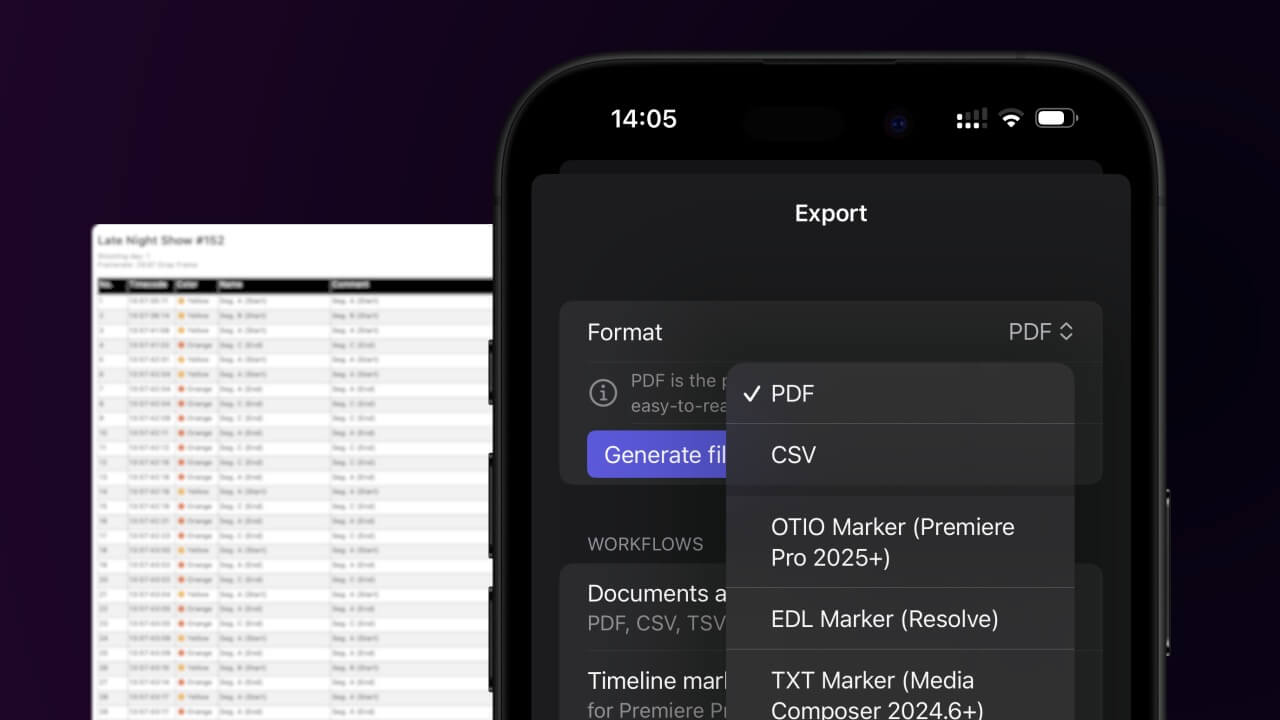
1. Export a CSV file from Live Timecode Notes app
Open the project in the app, then select "Export Notes" from the top menu. Select "CSV". Generate and save the file.
2. Use the "Konverter Penanda" to convert the CSV file into an ODS file
Open the free Konverter Penanda, select "CSV" and set "convert" to "ODS". Generate and download the file. Jika Anda mengalami masalah saat mengonversi file, Anda dapat menghubungi dukungan gratis.
Ensure that the CSV file contains columns labelled "Timecode In", "Name" and "Comment". Otherwise, it will not work. You can also add columns for 'Colour' and 'Timecode Out'.
🚀 Selesai
Sekian untuk saat ini! Jika tutorial ini bermanfaat, silakan bagikan untuk mendukung kami. Jika Anda punya saran tentang cara menyempurnakan alur kerja ini, beri tahu kami!