1. Export an EDL marker file from DaVinci Resolve
- Select the sequence in your media tab.
- Make the right click on the sequence timeline in your media tab and it will open the popup.
- Navigate to: "Timeline > Export > Timeline Markers to EDL"
2. Use the "Konverter Penanda" to convert the EDL marker file into a CSV file
Open the free Konverter Penanda, select "DaVinci Resolve > Sequence (.edl)" and set "convert" to "CSV for Apple Numbers". Generate and download the file. Jika Anda mengalami masalah saat mengonversi file, Anda dapat menghubungi dukungan gratis.
3. Import the CSV file into Numbers
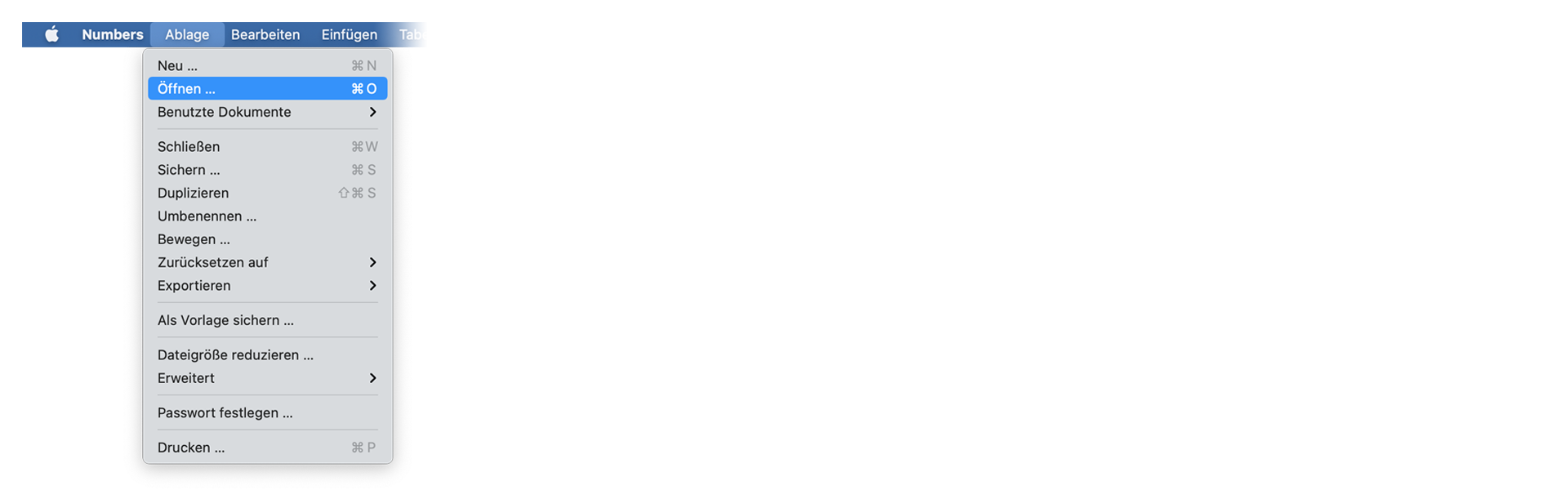
Open Numbers and go to "File -> Open". Simply open the CSV file.
🚀 Selesai
Sekian untuk saat ini! Jika tutorial ini bermanfaat, silakan bagikan untuk mendukung kami. Jika Anda punya saran tentang cara menyempurnakan alur kerja ini, beri tahu kami!