1. Export a VTT subtitle file from DaVinci Resolve
1. Select the sequence in your media tab.
2. In the menu select "File -> Export -> Subtitle."
3. Choose "Subtitle Files (*.vtt)" from the dropdown menu and save your file.
2. Use the "Alat & Konverter Subtitle" to convert the VTT subtitle file into a CSV file
Open the free Alat & Konverter Subtitle, select "VTT" and set "convert" to "CSV for Google Sheets". Generate and download the file. Jika Anda mengalami masalah saat mengonversi file, Anda dapat menghubungi dukungan gratis.
3. Import the CSV file into Google Sheets
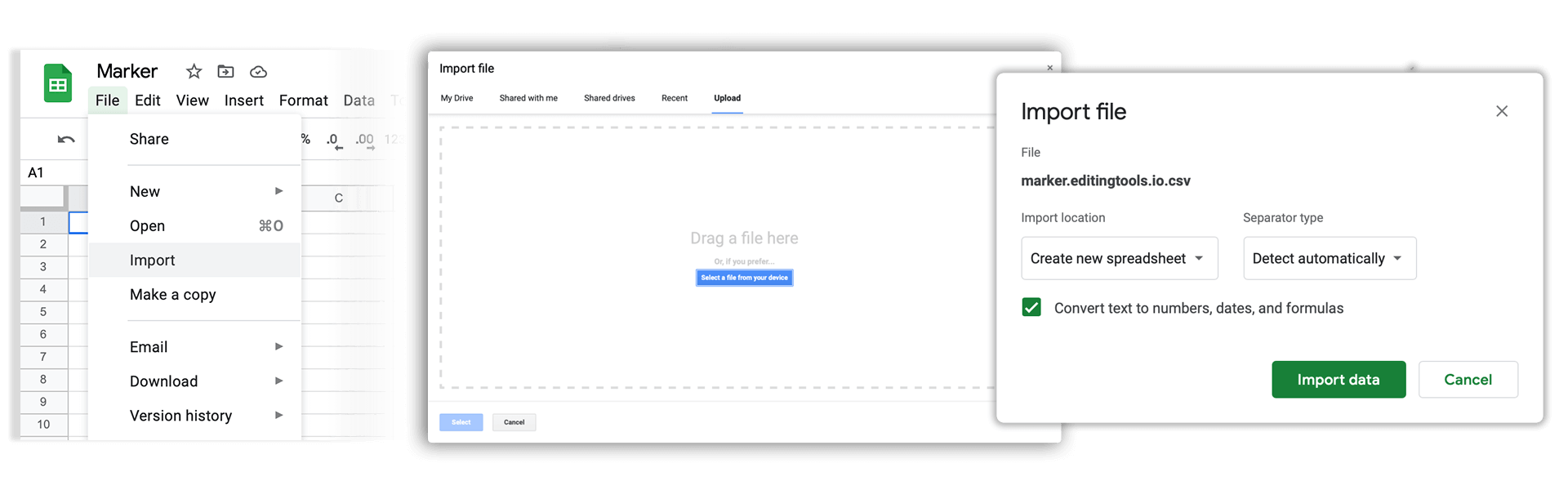
Open Google Sheets and go to "File -> Import". Upload the generated CSV file and press "Import Data" to generate the Sheet with all markers.
🚀 Selesai
Sekian untuk saat ini! Jika tutorial ini bermanfaat, silakan bagikan untuk mendukung kami. Jika Anda punya saran tentang cara menyempurnakan alur kerja ini, beri tahu kami!