1. Export a SRT subtitle file from Adobe Premiere Pro
Open the sequence in Premiere Pro and go to File > Export > "Captions". Choose "SubRip Subtitle Format (.srt)" from the export window.
2. Use the "Alat & Konverter Subtitle" to convert the SRT subtitle file into a Final Cut 7 XML marker file
Open the free Alat & Konverter Subtitle, select "SRT" and set "convert" to "Adobe Premiere Pro > Sequence (.xml)". Generate and download the file. Jika Anda mengalami masalah saat mengonversi file, Anda dapat menghubungi dukungan gratis.
3. Import the Final Cut 7 XML marker file into Adobe Premiere Pro
To import timeline markers, go to "File -> Import" and select the XML file.
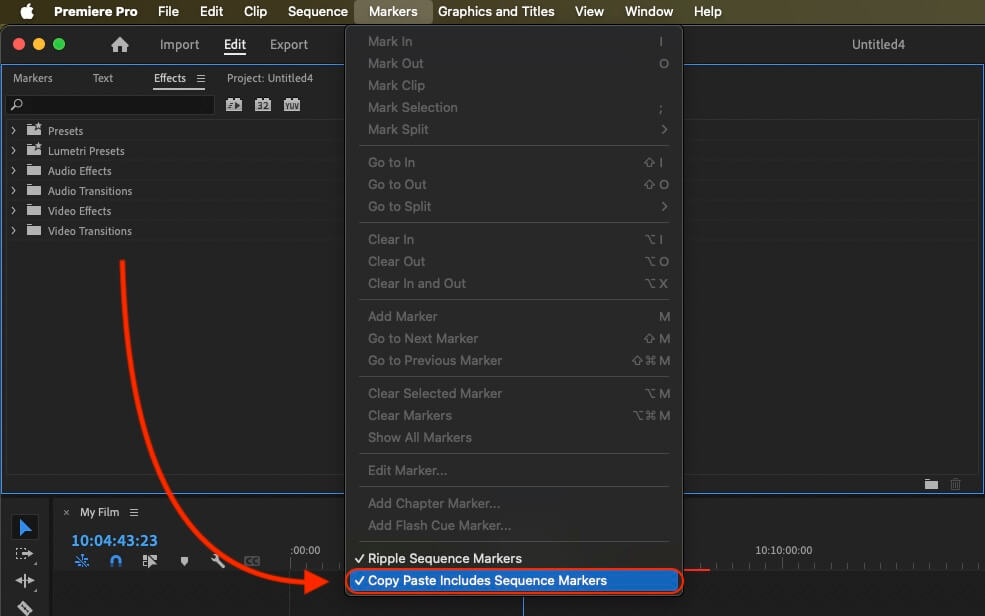
If you want to copy these markers into the existing sequence, use the adjustment layer or any other video as placeholder. Then copy the clip and switch to your existing sequence. Move the cursor to the location, where the adjusmtent layer or first marker appeared in the other sequence. Then past it. It will only copy the timeline markers if under setting (in the Markers menu) the option "Copy Paste Includes Sequence Markers" is active.
🚀 Selesai
Sekian untuk saat ini! Jika tutorial ini bermanfaat, silakan bagikan untuk mendukung kami. Jika Anda punya saran tentang cara menyempurnakan alur kerja ini, beri tahu kami!